> For the complete documentation index, see [llms.txt](https://docs.dstillery.com/llms.txt). Markdown versions of documentation pages are available by appending `.md` to page URLs; this page is available as [Markdown](https://docs.dstillery.com/using-ds-1/agents/create-a-pixel.md).
# Create a pixel
Generate a tracking tag, place it on your site, and build Custom AI audiences from the data it collects.
## What a pixel does
A pixel is a tracking tag you place on the pages of your choosing. It records the visits to those pages, and that first-party data becomes the seed for Custom AI audiences modeled on the people who actually come to your site.
It is also what powers [predictive lift analysis](/using-ds-1/agents/analyze-predictive-lift-scores.md), since lift is measured against a real conversion signal rather than a proxy.
## Walk through a pixel
### Step 1. Open the pixel creator
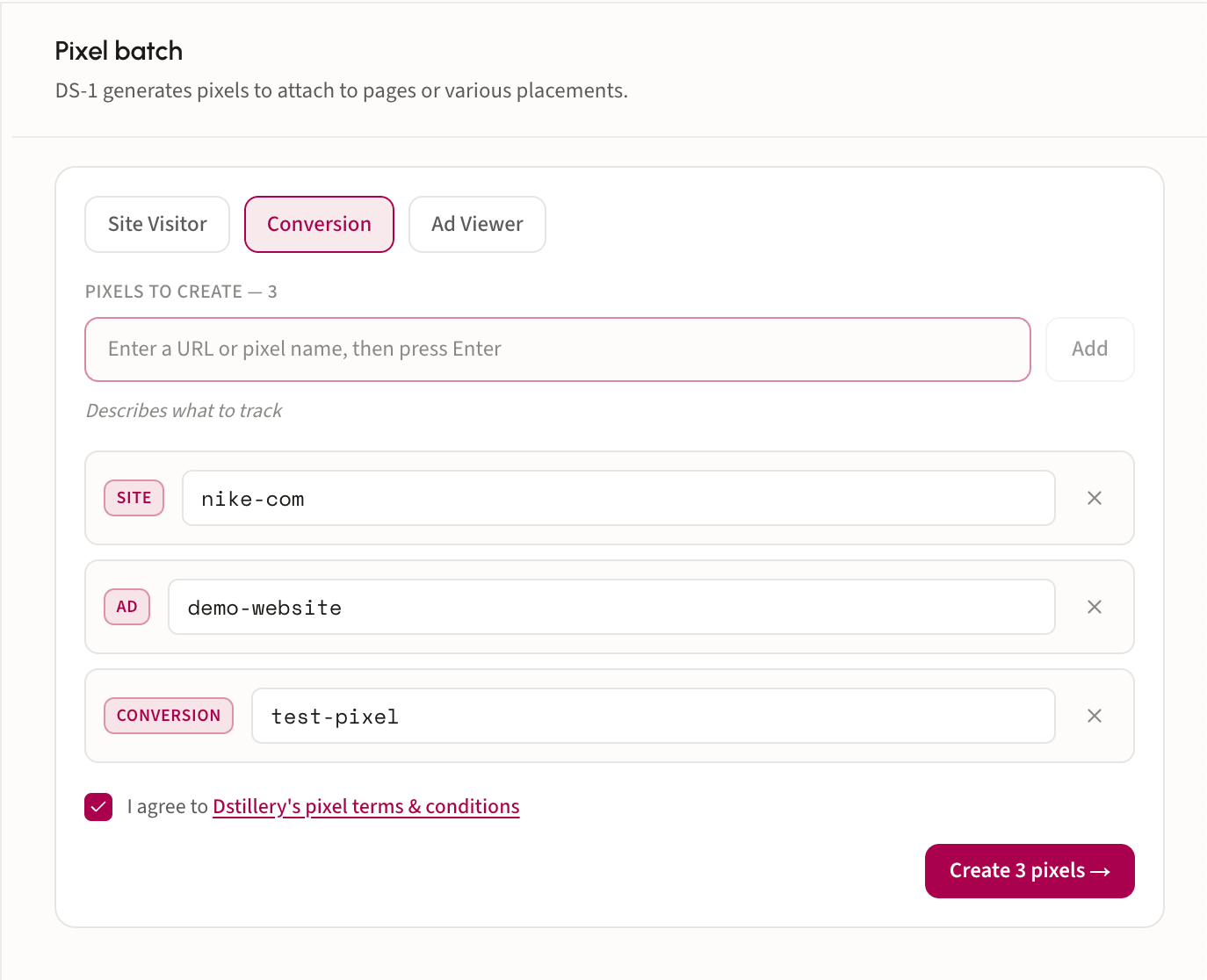
DS-1 opens with the **Pixel batch** panel on the canvas. Build the batch there, or type the request into chat to create pixels in bulk.
### Step 2. Pick a type and add pixels
Choose what the pixel tracks, then enter a URL or pixel name and press Enter. Each entry joins the list with a tag showing its type, so one batch can mix all three:
* **Site Visitor** for ordinary page visits.
* **Conversion** for pages that signal an action taken, such as a purchase or form submit.
* **Ad Viewer** for impression tracking.
Switch the type selector between entries to mix types in a single batch. Remove an entry with its **×**.
### Step 3. Accept the terms and create
Tick **I agree to Dstillery's pixel terms & conditions**. The create button counts your batch, for example **Create 3 pixels**, and stays inactive until the box is ticked.
### Step 4. Copy the tags onto your site
Each created pixel returns with its description, type, and ID, plus two tags: an **HTML image tag** and a **JavaScript tag**. Use **Copy** on whichever your site takes, and place it on the corresponding page.
**Download spreadsheet** exports the whole batch, which is the easier handoff when someone else is doing the tagging.
{% hint style="warning" %}
A pixel needs roughly **1,000 hits** before a Custom AI audience can be modeled from it. Place tags early, well before the campaign needs the audience.
{% endhint %}